- Usage
- Styles
- Content guidelines
- Accessibility
Usage
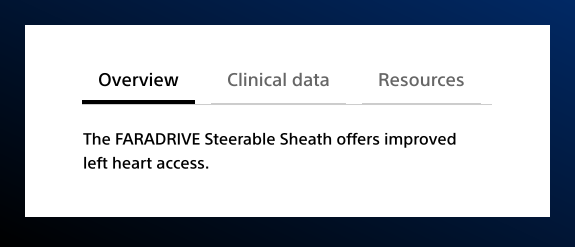
Use the Tabs Component to present related content in a compact, organized way within the same page. Use where multiple sections need to be accessible without cluttering the page.
Tabs are helpful when users need to focus on one set of content at a time, without having to scroll through page sections or navigate to another page. Tabs are an alternative to adding another level of navigation.
Common usage includes:
- Product detail page content
- Clinical summary modules
- Training modules
Dos and don'ts
Do:
- Keep tab labels short and descriptive
- Limit the number of tabs
- Order tabs logically, such as by order of need or use
- Group tabs by content type
- Ensure tabs are keyboard accessible
- Consider the experience on small screens
Don’t:
- Add too many tabs — a good rule of thumb is not to add more than six tabs
- Overload tabs with excessive content
- Use vague or unclear tab labels
- Nest tabs
- Hide critical information behind tabs without clear indication
- Do not use this component on the following container backgrounds:
- Assertive
- Assertive gradient
- Accent
- Dark blue
- Vertical gradient
Use case consideration
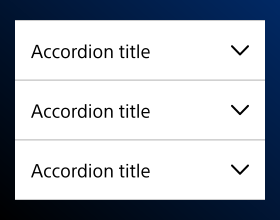
The Tab and Accordion Components are similar ways of structuring information. Here are some guidelines for deciding when to use Tabs or Accordions in your use case, and when to consider another solution:
Use Tabs when:
- The content is limited to a small number of categories that are unlikely to change or expand
- The content needs a larger area or the whole page
- The categories should function more like navigation than a show / hide toggle
Use Accordions when:
- The content includes too much related information to show within a limited space
- The content is overwhelming when displayed all at once - accordions allow users to hide areas of content they are not presently focused on
- The content can be grouped into logical categories
- The user does not need to see all the information at once to complete their task
Use something else when:
- There is enough space to show the content all the time
- The content makes more sense to end users when viewed at once - for example, if they need all information simultaneously visible to make a decision
- Users are likely to read all the content
- The content cannot be logically grouped into tabs or accordions
- The total tab content slows the page’s performance
Functionality
If there are more tabs than can be shown on the viewport, the tabs will overflow the page. Arrows appear on the far right side of the tab list to allow the user to scroll to see more tabs. Arrows will appear disabled when the user reaches the beginning or end of the tab list.
Styles
Styles are used to visually amplify the Boston Scientific brand. Styles carry different brand or functional treatments that bring a distinctive look to our webpages while also helping to emphasize key information.
Brand treatment
The brand treatment should be used to visually emphasize content and provide a more tailored and distinctive look and feel to a webpage. Be mindful not to overuse and avoid treatment competing with other imagery. Ensure a balanced visual hierarchy.
Top margin
Options include: default, increase, decrease, remove.
Content guidelines
Content guidelines are principles to follow when writing digital content for Boston Scientific web pages. Following the principles ensures consistency, clarity, and quality.
Tabs content
Do:
- Keep labels short, clear, and unique
- Ensure that the labels are mutually exclusive from each other
- Keep translation in mind when writing tab labels
- Write tab labels in sentence case
Don't:
- Add long labels, try to keep it to two words
Accessibility
This component passes AA WCAG standards. However, changes made by the content owner or implementer could impact accessibility compliance. Be sure to follow code standards, usage guidelines, and content guidelines to ensure that this component are fully accessible.
- Make sure each tab has a unique and descriptive label — this is necessary for users relying on assistive technologies to navigate
- Make sure that the content within the tab area is also fully accessible
For more information, see WAI-ARIA Authoring Practices for tabs and Deque’s screen reader keyboard shortcuts and gestures documentation.