
- Usage
- Content guidelines
- Accessibility
Usage
The Breadcrumb component displays the position of the current page within the site hierarchy, allowing page visitors to navigate the page hierarchy from their current location.
Common usage includes:
- Integration into headers and footers.
- Displaying the user’s current page in relation to the site structure.
- Offering quick navigation back to parent or higher-level page.
Dos and don'ts
Do:
- Use Breadcrumbs for websites with multiple levels of hierarchy.
- Ensure each link is clickable and accurately reflects the page structure.
- Place Breadcrumbs near the top of the page for visibility.
- Maintain consistent spacing between links.
Don’t:
- Use Breadcrumbs as the primary navigation method.
- Include unnecessary levels that clutter the navigation.
- Break the logical hierarchy by skipping levels.
- Do not select the following options in the edit dialog; they will compromise the component:
- Show hidden navigation items
- Hide current page
- Disable shadowing
Overflow modification
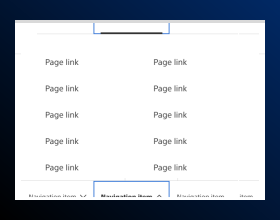
If there are more than three breadcrumbs, the earlier breadcrumbs will roll up into an overflow. The user will see the current page’s breadcrumb and the previous page’s breadcrumb.

Location
Breadcrumbs should appear in the same place on every page. Breadcrumbs live at the top of the page, right after the primary navigation.
Breadcrumbs should show the user the location of their current page within the website’s hierarchy, not the path the user took to get to that page.
Navigation level
Breadcrumbs should start with a top-level navigation item, such as “Health Care Professionals”, “Patients”, “Product”, or “About”. This usually means that the “Navigation Start Level” field in the edit dialog should be set to “3”.
If the breadcrumbs wrap too much, set the “Navigation Start Level” at a higher level to shorten the breadcrumb chain. Start the chain on the previous page.
Heading 1
See the Title Component for more information on the Page Header style system.
Structurally, breadcrumbs should always be the first piece of content on the page followed immediately by the page’s heading 1. The heading 1 can appear in two places: directly after the breadcrumbs or in the Super Hero component.
If the heading 1 does appear within the hero, the heading 1 must be informative, meaning the text must be the equivalent of the page title. This text cannot be marketing content.
Content guidelines
Content guidelines are principles to follow when writing digital content for Boston Scientific web pages. Following the principles ensures consistency, clarity, and quality.
Breadcrumb content
Do:
- Ensure that the page’s h1 (title) and the page’s breadcrumb text match.
- Use sentence case, except for proper nouns and product names.
- Consider editing any breadcrumb text that wraps or is excessively long.
Don't:
- Mismatch the text of the page’s h1 (title) and the page’s breadcrumb.
- Truncate the breadcrumb text — for example, Lorem ipsum...
- Add a trailing slash on the current page’s breadcrumb.
Accessibility
This component passes AA WCAG standards. However, changes made by the content owner or implementer could impact accessibility compliance. Be sure to follow code standards and content guidelines to ensure that this component is fully accessible.
For more information, see the WAI-ARIA Authoring Practices for breadcrumbs and Deque’s screen reader keyboard shortcuts and gestures documentation.