- Usage
- Content guidelines
- Accessibility
Usage
Use the Primary Navigation component to provide clear, consistent access to key site sections. It is essential for guiding users through the site hierarchy and improving usability.
Common usage includes:
- Global navigation menus
Dos and don'ts
Do:
- Use an SVG for the logo images
- Add descriptions to primary navigation menus and level two section items if necessary
- Keep navigation labels short and descriptive
- Ensure menus are accessible via keyboard and screen readers
- Maintain consistent placement across all pages
Don’t:
- Remove skip links or add too many skip links
- Add more than 3 levels of navigation in the menu
- Skip navigation levels in the menu
- Remove landing page links — this is the only way a user can get to those landing pages
Varations
The Primary Navigation Component offers four functional modifiers:
- Simple
- Intermediate
- Complex
Simple
The simple primary navigation modifier has no viewable second level from the primary navigation bar. An example of this pattern in context is the Anatomy documentation site’s navigation.
Intermediate
The intermediate primary navigation modifier has at least one simple dropdown with links that don’t require further drill-down levels.
Complex
The complex primary navigation modifier has at least one dropdown that requires further drill-down levels or sections of links. An example of this pattern in context is the Boston Scientific corporate site’s navigation.
Building blocks
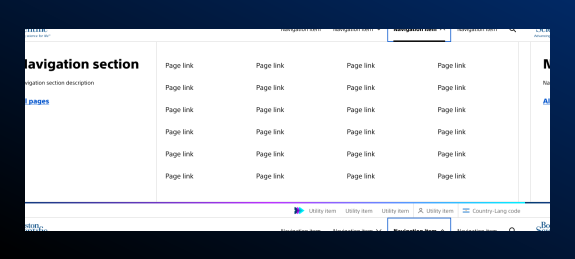
The Primary Navigation Core Component is made up of several elements - some optional, some required. The primary navigation appears at the top of the page. At minimum, it is comprised of at least one skip link, the website’s logo, the primary navigation items, and site search.
Skip link
This is a required navigation element. Skip links allow users who navigate our sites with keyboards or screen readers to skip to a different landmark on the page. There can be more than one skip link, but always include “Skip to main content”.
Don’t add too many skip links — this element is meant to quickly guide users to the content they’re looking for, not as another navigation structure. Never remove skip links.
Utility navigation
This is an optional navigation element that includes the combined advancing arrows graphic. Utility navigation contains navigation links that should be minimized. Log in links, company information links, region selectors, and careers links are common items in utility navigations.
Logo
This is a required navigation element. The logo identifies the entire website. The logo should be linked to home as research and data shows that users expect logos to link back to home. Always use an SVG for the logo image.
Primary navigation items
These are the main sections of the website. The primary navigation items should be high-level links or broad categories under which all other pages can be organized. If a primary navigation item opens a menu, a caret icon should appear to tell the user that the item is not a link but a menu trigger. All link and menu triggers should activate on click, not hover.
Site search
This is an optional navigation element. Site search is a powerful tool that allows users to jump to a specific link. Ideally, the search bar should be visible. But, if there’s not enough space, the search icon should appear in a consistent place.
Menus
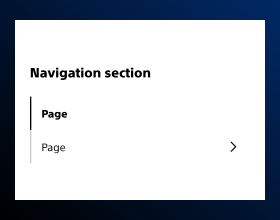
Primary navigation items can trigger a menu opening. The menu can contain the primary navigation item text, an optional description of the section, a landing page link, and up to three levels of navigation. An overflow link to that level’s landing page will appear if the menu has too many links to surface in the menu.
Level one
This is the level directly under the primary navigation item level. If these sections or links need further explanation, an optional description can be added.
Level two
This level can contain links or sections. An overflow link can be added if there are too many links to show in the menu.
Level three
This section must contain links. An overflow link can be added if there are too many links to show in the menu.
Content guidelines
Content guidelines are principles to follow when writing digital content for Boston Scientific web pages. Following the principles ensures consistency, clarity, and quality.
Primary navigation content
Do:
- Match the navigation item text with its corresponding page’s breadcrumb text and h1
- Write in sentence case
- Name sections, categories, and links concisely and clearly
- Add descriptions to primary navigation menus and level two section items if necessary
Don't:
- Add pages that don’t belong at the primary navigation level
- Skip navigation levels
Authoring
AEM guidelines
Primary Navigation is available as a Core Component in AEM. Primary Navigation supports hierarchical navigation structures, responsive layouts, and accessibility features. Authors can configure menu depth, link behavior, and styling options.
For general information about navigation in AEM, refer to AEM's Navigation Component documentation.

Accessibility
This component passes AAA WCAG standards. However, changes made by the content owner or implementer could impact accessibility compliance. Be sure to follow code standards and content guidelines to ensure that this component is fully accessible.
For more information, see the WAI-ARIA Authoring Practices for navigation and Deque’s screen reader keyboard shortcuts and gestures documentation.