- Usage
- Content guidelines
- Accessibility
Usage
Use the Forms component to capture user data securely and efficiently. It is ideal for lead generation, event registration, surveys, and feedback collection.
Common usage includes:
- Contact forms
- Event registration forms
- Feedback or survey forms
- Subscription forms
Dos and don'ts
Do:
- Arrange form fields vertically in one column
- Locate the “Submit” and “Cancel” buttons at the bottom or end of the form
- Visually group checkboxes and radio buttons under the same heading
- Ask the user to enter only information that is required
- Structure the form in a logical and predictable order for when the user should or would fill out the inputs
- Emphasize the positive action (“Submit”) over the negative action (“Cancel”)
Don’t:
- Overload forms with unnecessary fields
- Use unclear labels or instructions
- Ignore accessibility requirements for screen readers
- Group inputs in an illogical manner
- Create long forms
- Disable the “Submit” button
Example
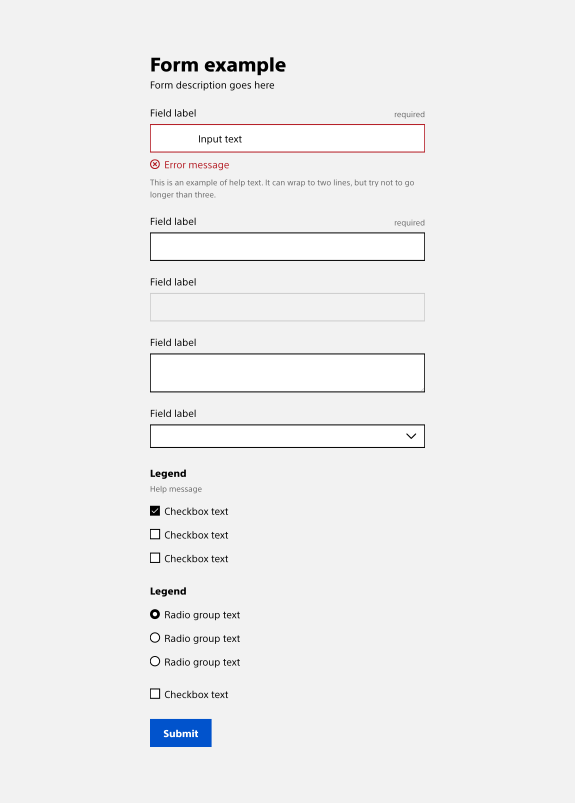
A form is made up of related form controls that allow the user to enter, select, and submit information.
Form length
When creating forms it is important to remember that the longer the form, the less inclined the user is to complete that form. Make sure that you are respecting the user’s time and personal privacy and only ask for necessary information.
If a form is especially long, consider splitting the experience up into shorter logical groups to avoid overwhelming the user:
- Split the form up into logical groups
- Allow the user to skip optional inputs
Alignment
Forms should always be arranged vertically, including checkboxes and radio groups. See the User Research section for more information.
If your platform still has horizontal form layouts, please make a plan to convert to vertical layout soon.
Validation
Validation happens at three points in time:
- As the user interacts with the form control, with a 1-second delay to prevent an error message from appearing before the user is finished interacting with the form control
- When the user tabs to or clicks on another form control
- On click of the ‘submit’ button
Error messages are cleared as invalid values are corrected.
Form options
Content guidelines
Content guidelines are principles to follow when writing digital content for Boston Scientific web pages. Following the principles ensures consistency, clarity, and quality.
Forms content
Do:
- Give the form a descriptive title
- Add form-level help text when necessary
- Group related form inputs in fieldsets with descriptive legend text
- Write input labels in parallel syntax
- Ensure that the input’s text and purpose are distinct from other inputs
- Ensure that the form’s actions are clear and distinct from each other
- Mark only the fields that are necessary as “required”
Don't:
- Write vague form text, descriptions, fieldset labels, or actions
- Rely on error messages to deliver important information
- Refer to the error messaging content guidelines for more information on writing effective messaging
Accessibility
When validating that a form is accessible, first follow all accessibility requirements for each individual form element.
Here are some high-level accessibility requirements to check:
- Ensure that you announce the form correctly before a user enters the form
- A specific form title for visual users
- Making sure the form is declared on a screen reader
- Ensure the form is keyboard navigable
- Ensure that the validation messages provide the reason and solution to the user’s error
- Ensure that help text, if necessary, gives the user enough information to complete their task
See W3C’s Form Instructions for more information and Deque’s screen reader keyboard shortcuts and gestures documentation.