- Usage
- Styles
- Content guidelines
- Accessibility
Usage
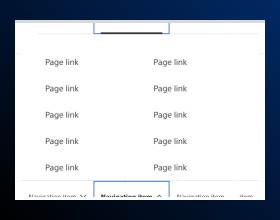
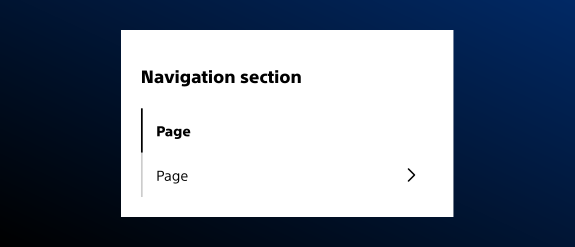
Use the Secondary Navigation component to provide quick access to related pages within a specific section of the site. It is ideal for guiding users through subcategories or related topics without overwhelming the primary navigation.
Common usage includes:
- Sub-navigation for multi-page experiences such as:
- Campaign pages
- Flagship product pages
- Patient-facing pages
- Clinical content pages
Dos and Don'ts
Do:
- Add an overview page if necessary
- Group pages with related content under a single page group
- Combine small amounts of content into another page, when possible, instead of adding navigation items
Don’t:
- Extend a page’s hierarchy deeper than three levels
- Add pages that don’t belong in that experience’s menu
- Hide the secondary navigation if the experience has more than one page
- Use the secondary navigation component when there is only one page in the experience
Styles
Styles are used to visually amplify the Boston Scientific brand. Styles carry different brand or functional treatments that bring a distinctive look to our webpages while also helping to emphasize key information.
Using the functional treatment
The functional treatment should be used to change the way a component operates to make it better fit the use case on a web page.
Top margin
The Secondary Navigation Component's top margin offers four choices:
- Default top margin
- Increase top margin
- Decrease top margin
- Remove top margin
Content guidelines
Content guidelines are principles to follow when writing digital content for Boston Scientific web pages. Following the principles ensures consistency, clarity, and quality.
Secondary navigation content
Do:
- Match the navigation item text with its corresponding page’s breadcrumb text and h1
- Write in sentence case
- Name sections, categories, and links concisely and clearly
- Add descriptions to primary navigation menus and level two section items if necessary
Don't:
- Add pages that don’t belong at the primary navigation level
- Skip navigation levels
Accessibility
This component passes AA WCAG standards. However, changes made by the content owner or implementer could impact accessibility compliance. Be sure to follow code standards and content guidelines to ensure that this component is fully accessible.
For more information, see the W3’s navigation example and notes and Deque’s screen reader keyboard shortcuts and gestures documentation.