

- Usage
- Styles
- Accessibility
Usage
Use the Image component to display visual content that complements text and improves user engagement. Image allows a single image asset to be added to the page.
Common usage includes:
- Patient imagery
- Product imagery
- Informational graphics within clinical or educational content
Dos and don'ts
Do:
- Provide descriptive alt text for all images to meet accessibility standards
- Use high-resolution images optimized for web performance
- Maintain consistent aspect ratios for visual harmony
- Align images with Boston Scientific brand guidelines
Don’t:
- Upload excessively large files that slow page load times
- Use images without proper licensing or brand approval
- Overcrowd layouts with too many images
- Ignore responsive settings for mobile devices
- Include text or numbers in images
- Create custom iconography
Image best practices
- Text in images would compete with text in other areas of a webpage, creating unpredictable and inconsistent results
- Labels for charts and graphs are the exception
- Do not add image-based gradients, background colors, or decorative treatments into image files. Instead, use the options in the style system
- Visual consistency across our many webpages
Use descriptive file names:
- This helps with search engine optimization (SEO)
Size images correctly:
- Most images should be 100 kb or less
- Hero images should be 100 kb - 300 kb
Image behavior
The Image Component will scale proportionally to fill 100% of the width of the component; it is fluid. If you need to adjust component width, use responsive authoring.
Scalable vector graphics (SVGs)
SVGs use an XML language to find vector images. SVGs are used to render vector-based graphics and can be rendered at any resolution or size without a loss of quality. This means that the user can zoom out or in on an SVG, and it will never become blurry or pixelated. Because of this, SVGs are the most accessible image format for low-vision users. Use SVGs for complex images whenever possible.
The following should always be SVG files:
- Icons
- Logos
- Text graphics
- Diagrams
- Charts
- Maps
- Graphs
- Any vector-based graphic
Captions
Add an image caption when the image needs further explanation or description. Image captions should not be longer than two sentences. Descriptive image captions also help with SEO.
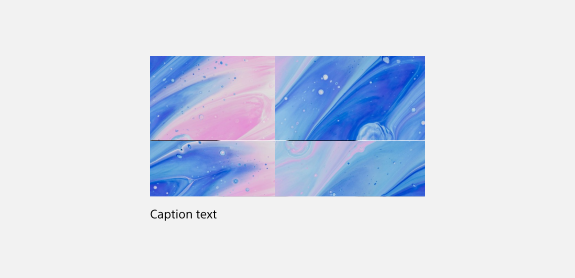
Default caption
Default should be used for any image whose caption does not need to be emphasized. The default caption can be set to the black or ghost text style. Only use the ghost text style on the assertive and accent swatch containers.
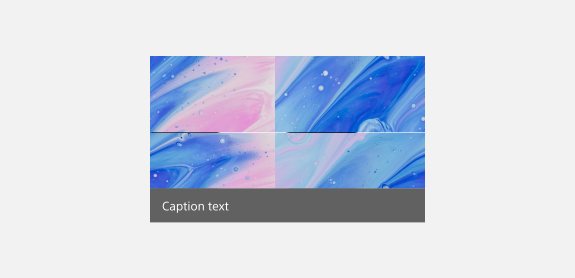
Assertive caption
The assertive caption style should be used if the caption needs to be emphasized and is important to understanding the content of the image. The assertive caption has a 60% opacity of the darkest neutral color to ensure readability on any image.
Aspect ratio
1:1
The image aspect is fixed at 1:1. The image will be square, meaning the height and width are equal. This aspect ratio is generally used for product images and product cards.
4:3
The image aspect ratio is fixed at 4:3. This aspect ratio is generally used for content cards.
16:9
The image aspect ratio is fixed at 16:9. The image’s height is dependent on the image’s width. This aspect ratio is generally used for landscape images and content cards.
21:9
The image aspect ratio is fixed at 21:9. The image’s height is dependent on the image’s width. This aspect ratio is generally used for landscape images.
Styles
Styles are used to visually amplify the Boston Scientific brand. Styles carry different brand or functional treatments that bring a distinctive look to our webpages while also helping to emphasize key information.
Using the brand treatment
The brand treatment should be used to visually emphasize content and provide a more tailored and distinctive look and feel to a webpage. Be mindful not to overuse and avoid treatment competing with other imagery. Ensure a balanced visual hierarchy.
This treatment is applied by selecting a treatment type and treatment color.
Available treatment types
- Bottom left corner
- Bottom right corner
- Top right corner
- Hard dropshadow
Available treatment colors
- Pretitle treatment type
- Interactive treatment type
- Shadow treatment type
Using the functional treatment
The functional treatment should be used to change the way a component operates to make it better fit the use case on a web page.
Top margin
Apply top margin to create space between two components or to create more space within a component. Options include: Default, Increase by one step, Increase by two steps, Decrease by 1 step, Decrease by 2 steps, Remove.
Accessibility
This component passes AAA WCAG standards. However, changes made by the content owner or implementer could impact accessibility compliance. Be sure to follow code standards and content guidelines to ensure that this component is fully accessible.