- Usage
- Styles
- Content guidelines
- Accessibility
Usage
The Wizard Navigation component is designed for scenarios where users need to complete a process in a structured, step-by-step manner. It provides clear progression indicators and organized navigation, ensuring that complex workflows—such as product configurations or multi-step forms—are intuitive and easy to follow. By breaking tasks into manageable steps, this component enhances usability and reduces cognitive load for users.
Approval is required to use this component.
Common usage includes:
- Multi-step forms or workflows
- Guided product configuration
- Sequential data entry processes
Dos and don'ts
Do:
- Get approval before designing or using this component
- Only use this component on a home page or a second level landing page
- Use for processes requiring clear step progression
- Provide clear labels for each step
- Ensure steps are logically ordered
- Use a wizard if there are a few different journeys a user could take to get to more specific or personalized locations
- Limit the number of options
Don’t:
- Use a wizard without approval
- Use for simple navigation (use standard Navigation component instead)
- Use a wizard if there is one journey a user can take
Types of wizard navigation
The wizard can have a maximum of three levels, including the last level of navigation links. The first and second levels have a minimum of two options and a maximum of nine. The last level has a minimum of one step and a maximum of nine.
If there are more than nine options, an overflow link will be added to send the user to a page where they can view the full amount of options. This takes the user out of the drill-down journey, so try to limit the number of options for each level.
One step
A one step wizard will show the last step available. The options will be links.
Because the wizard was designed to allow the user to funnel down their options by traveling from one step to the next step, only use a one step wizard if the links are the most important thing on the page and if no other component can solve for this use case.
Two step
A two step wizard will have one level of drill-down options and one level of navigation links.
Three step
A three step wizard will have two levels of drill-down options and one level of navigation links.
Building blocks
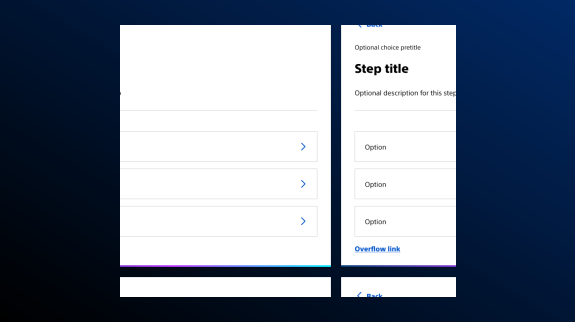
The Wizard Navigation Core Component is made up of several elements - some optional, some required. At minimum, the wizard navigation is comprised of at least a title, a back button, options for users, and an overflow link. Depending on the wizard’s content, it might make sense to add or remove optional elements.
Title
This is a required navigation element. The title of a step should be an h2 as the wizard should be the second most important thing on the page after the h1. Keep the title concise and descriptive; omit any marketing content that may not describe the step’s purpose clearly.
Back button
This is a required navigation element.
Options
This is a required navigation element. There are two kinds of options - drill-down and navigation link.
Each step before the last step will have drill-down options. Drill-down options take the user to the next step, not to a new page. The last step in the wizard should always contain navigation link options. These options will take the user to a new page.
Overflow link
This is a required navigation element. This will appear if there are more than nine options in a step.
Breadcrumb
This will appear above the step’s heading and will show the user’s previous choice or the step number. Using this breadcrumb will remind the user how they got to this step from the last one. If the user does not need to be reminded of previous selections, the breadcrumb can show the number of steps in the wizard. Remove if the drill-down flow is simple and doesn’t require this level of decision tracking or numbering.
Description
This will appear below the step’s heading and give the user a brief description of what the step is. Using a description can make the drill-down journey feel more friendly and give extra details that can’t fit into the step’s heading. Remove if the drill-down flow is simple and doesn’t require this level of description.
Responsive behavior
On smaller screens, the wizard content will stack vertically. Try to limit the number of options shown as the maximum of nine options can be tall on smaller screens.
Styles
Styles are used to visually amplify the Boston Scientific brand. Styles carry different brand or functional treatments that bring a distinctive look to our webpages while also helping to emphasize key information.
Brand treatment
The brand treatment should be used to visually emphasize content and provide a more tailored and distinctive look and feel to a webpage. Be mindful not to overuse and avoid treatment competing with other imagery. Ensure a balanced visual hierarchy.
This treatment is applied by selecting a treatment type and treatment color.
Treatment type
Treatment color
Content guidelines
Content guidelines are principles to follow when writing digital content for Boston Scientific web pages. Following the principles ensures consistency, clarity, and quality.
Wizard navigation content
Do:
- Keep option text concise and descriptive
- Make sure that the link text matches the page title and breadcrumb of the link’s corresponding page
- Describe the step’s purpose, if necessary
Don't:
- Overload steps with excessive content
- Write in title case or all caps
- Add icons
Accessibility
This component passes AAA WCAG standards. However, changes made by the content owner or implementer could impact accessibility compliance. Be sure to follow code standards and content guidelines to ensure that the link is fully accessible.